Creating Your Concert Program with Canva
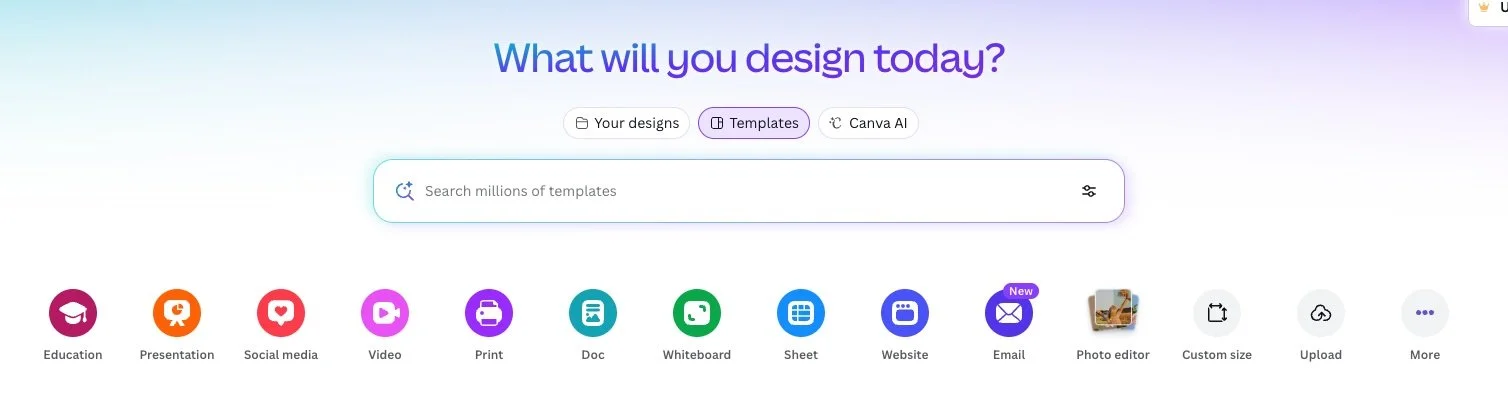
Let’s be honest—designing concert programs is one of those jobs we never quite plan or even train for, but always ends up on our plate - usually a day or two before the concert. I know that I would almost always save this task for the last minute - and that’s not the best use of time the last few days before the concert. Between rehearsals, making sure the stage is set up correctly (and not cleared the day before the concert by an unsuspecting custodian), and handling last minute crises like kids who lost their music, a student tells you they can’t make it even though they have a solo, etc., who has time to wrestle with clunky Word templates? Enter Canva—a free, easy-to-use design tool that helps you create polished, professional-looking concert programs without needing a degree in graphic design. Whether you’re putting together a winter concert, spring musical, or talent showcase, Canva makes the process not just manageable, but actually fun. The following is a guide to creating programs with the free version of Canva.
Step 1: Start with a Concert Program Template
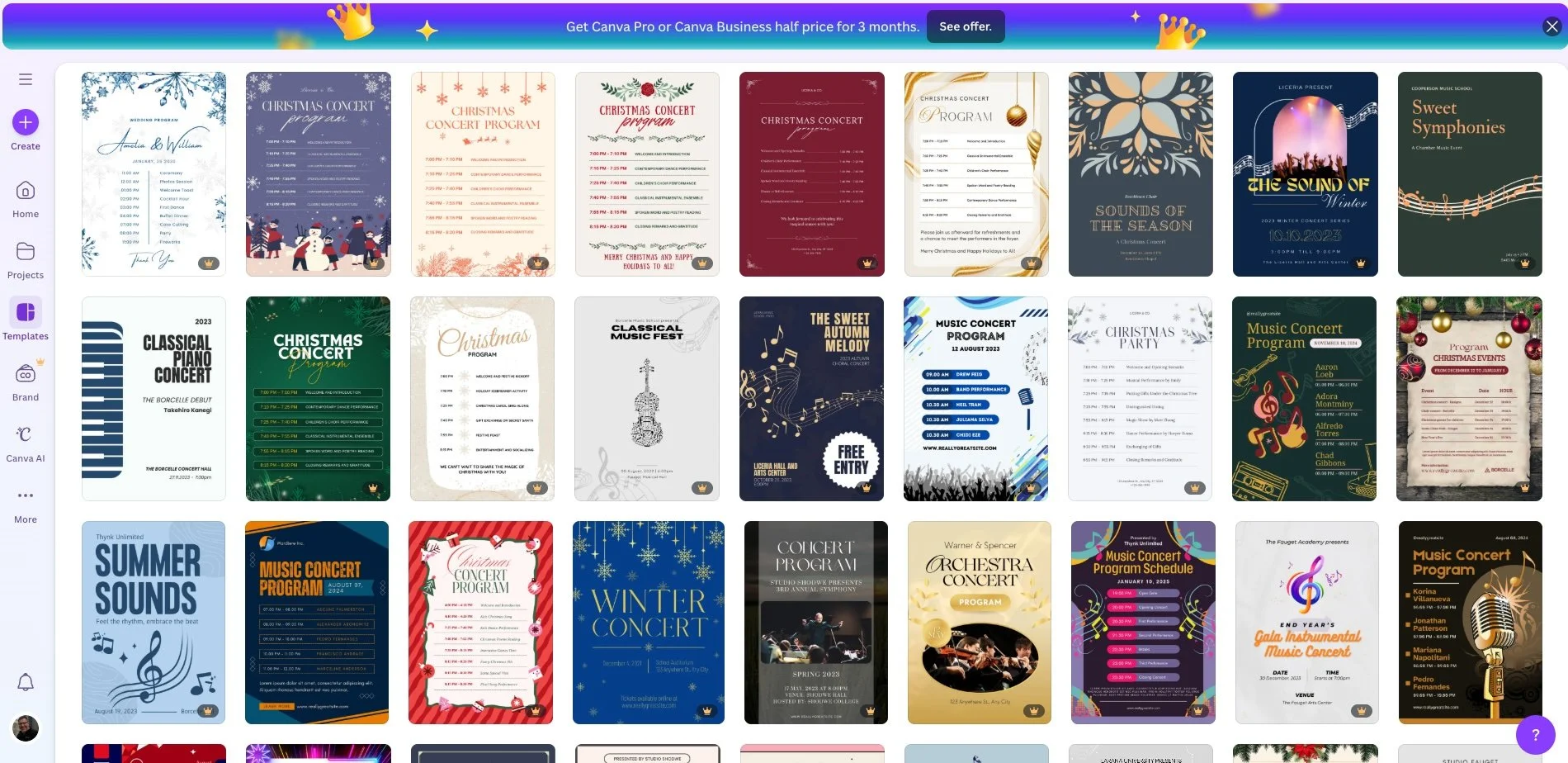
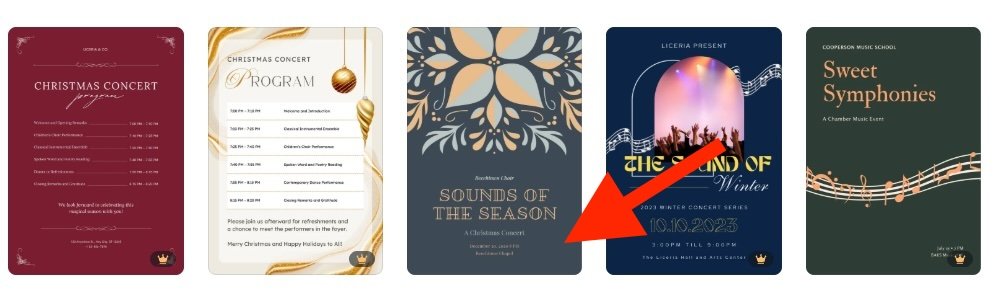
Head to www.canva.com, create a free account if you don’t already have one, and type “winter concert program” or “spring program” into the search bar. You’ll see a range of pre-designed templates—many are already structured in a bi-fold or tri-fold format, perfect for printing and handing out. Choose a template that you like: formal, playful, seasonal, or somewhere in between. You can customize everything later. One important thing to remember is that MANY of these templates are only available to paid users. Look for a template without a gold crown in the bottom right corner - these are free templates!
Step 2: Customize with Your Concert Info
Click into your chosen template and swap out the text fields with your concert title, date, location, and the pieces your students are performing. Canva’s drag-and-drop editor is super intuitive—just click and type. Want to reorder items or copy/paste from your repertoire list? Easy.
For a clean and readable layout:
Use clear fonts (Canva defaults like “Open Sans” or “Montserrat” work great)
Keep song titles bold, with composers in italics
Add student names under solos or featured groups
Step 3: Add Some Graphics
One of Canva’s biggest strengths is access to millions of graphics, icons, and images, many of which are free. Try searching for a treble clef, seasonal clip art, or school-themed elements to spice up your program without overwhelming it.
Pro tip: Stick to one or two accent colors and keep margins even. Less is more.
Step 4: Check Your List Twice
Here’s your friendly reminder: triple-check that every student who should be in the program is actually in the program. I can’t tell you how many times I accidentally left a student off the program (probably because I always left it to the last minute). There’s nothing like the panicked look of a kid (or parent) who doesn’t see their name in the clarinet section. Seriously—make a checklist, cross-reference your class rosters, ask a colleague with coffee to proofread. It’s a small thing that saves a lot of awkward explanations after the concert. And yes, your tuba section will notice if they’ve been left off. Tuba players never forget (take it from me).
Step 5: Print or Share Digitally
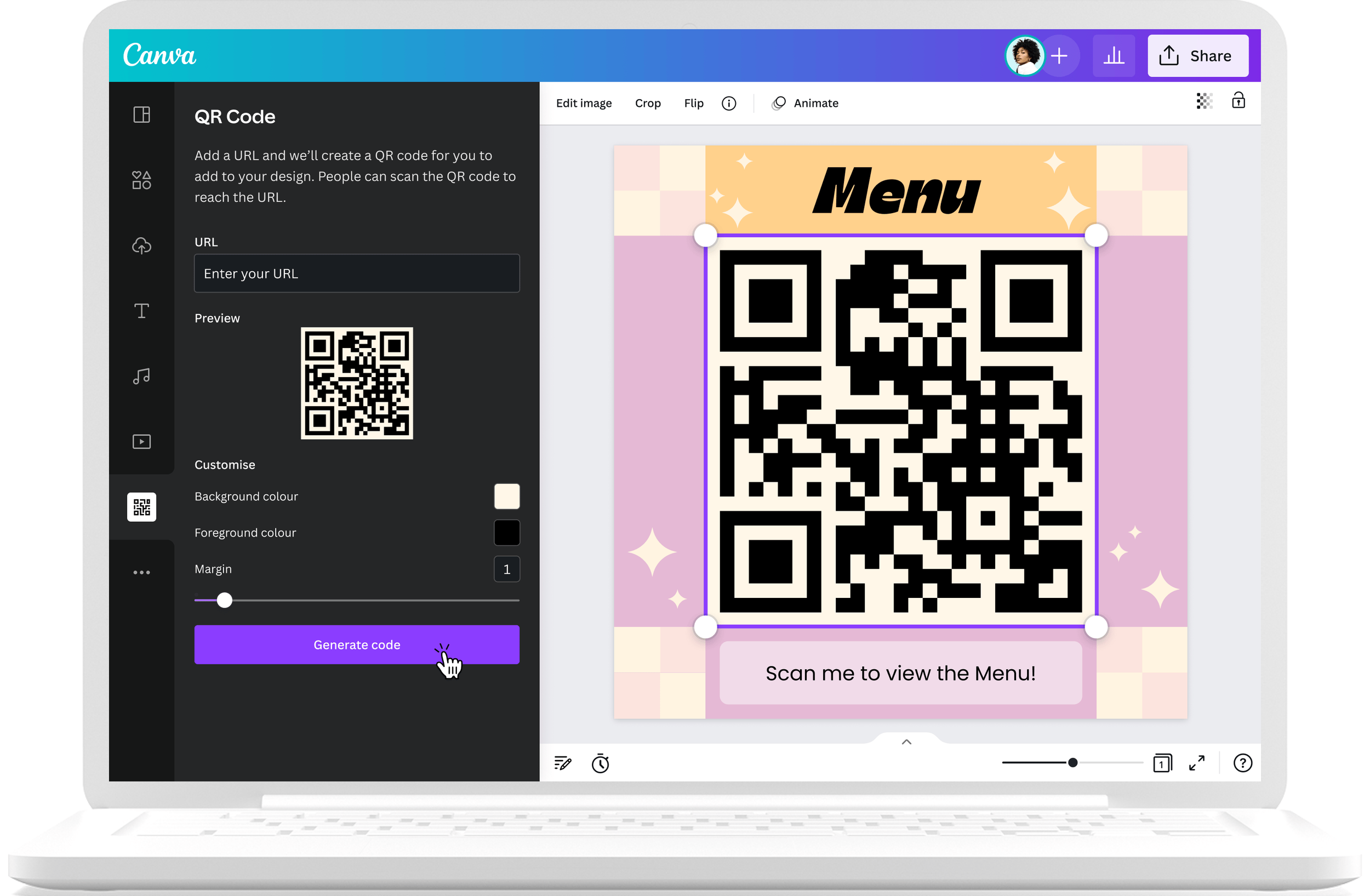
When you’re done, click “Share” > “Download” and choose PDF for printing. Canva even has options for “Print-ready PDF” with crop marks and bleed if you’re using a professional printer. It also allows you to create a QR code right in the program so you can go green: you can either use the built-in code generator OR upload your program to your school Google Drive, create a link to the program, and use a free QR code creator for families to load onto their phones (let’s face it - many will be on their phones during your concert ), or project the program on a screen at your concert. Canva also generates a shareable link for viewing online.
Bonus: Save Time Next Time
Once you’ve made one program, duplicate the design for future concerts. Just swap out the repertoire and details—no need to start from scratch each time.
A well-designed concert program doesn’t just look nice; it tells your audience that what your students are doing matters. With tools like Canva, you can make that happen without stress or a steep learning curve. Try it for your next concert, and you might just look forward to making programs next time! I hope that all of your holiday programs are well received by your school communities!