Introducing the Assessment Library in the MusicFirst Classroom
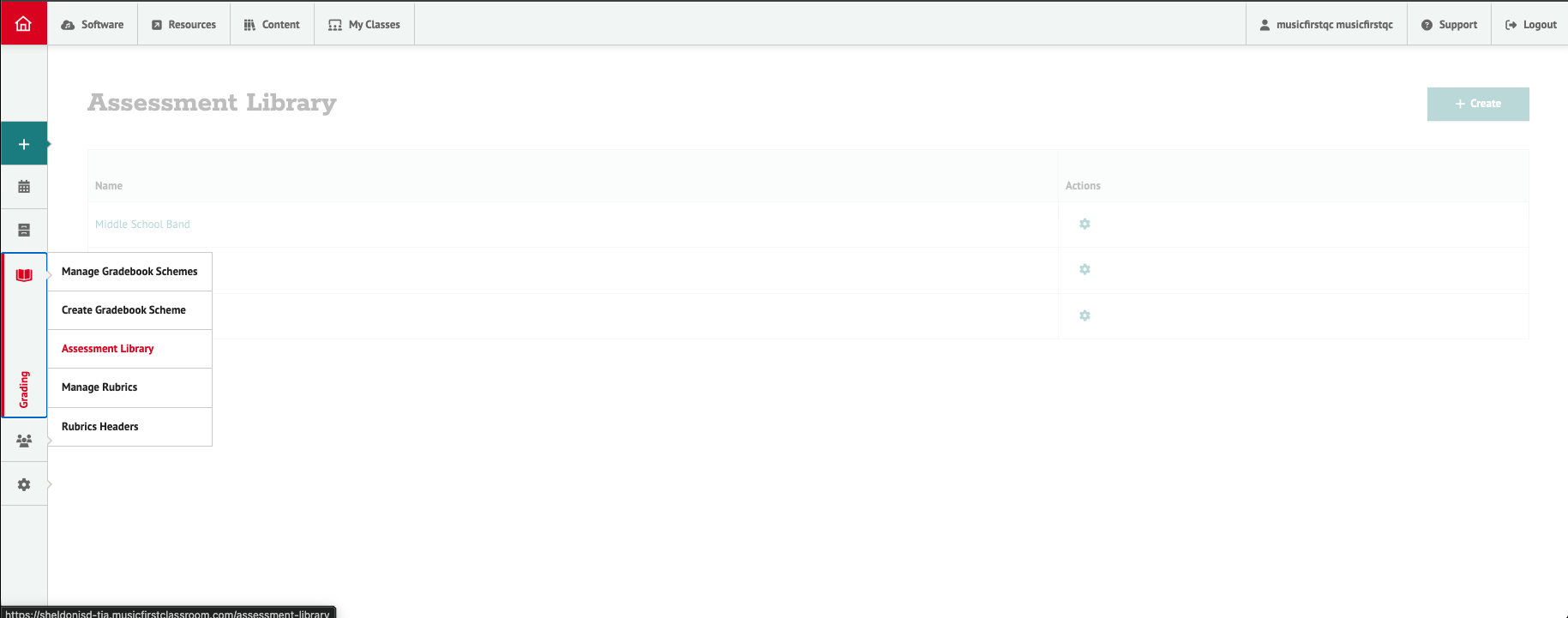
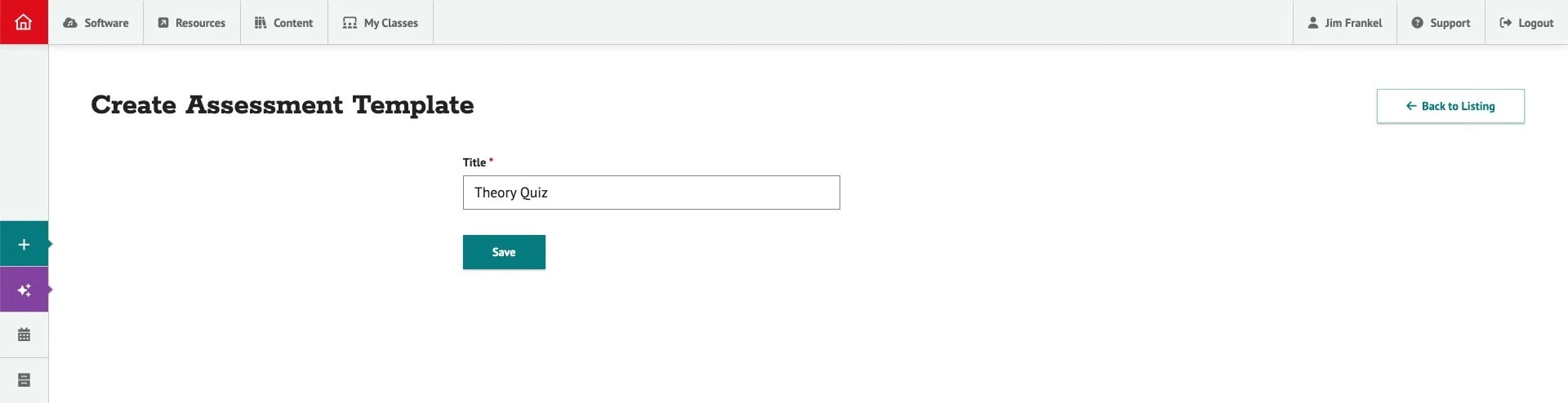
Today I am thrilled to announce that we launched one of the most all-time requested features in the MusicFirst Classroom last week - the Assessment Library. This new feature allows teachers to save and pull questions from a question bank - something we’ve called the Assessment Library. That means that rather than writing new questions from scratch every time OR re-using a previous assessment, you’ll be able to pull any questions from the library into your new assessment - saving you TONS of time. To access this new feature, click on the Grading tab from the left menu, and then select Assessment Library. Once there you can Create a new assessment template and add questions to it. After you’ve saved that assessment, the full assessment and/or the individual questions will be available in the Assessment Library to use in any future assessment you create.
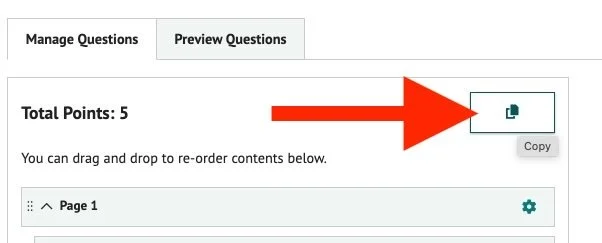
The other option is that you can take any existing assessments that you’ve created and add them to the Assessment Library by clicking on a new Copy button.
Once you’ve copied your existing assessment, you can name it and save it so that you can use any of those questions (or the entire assessment) in any new assessment you create. For those of you who have been asking for this feature, you know how incredibly powerful this is - especially when it comes to saving you time when creating assessments for your students.
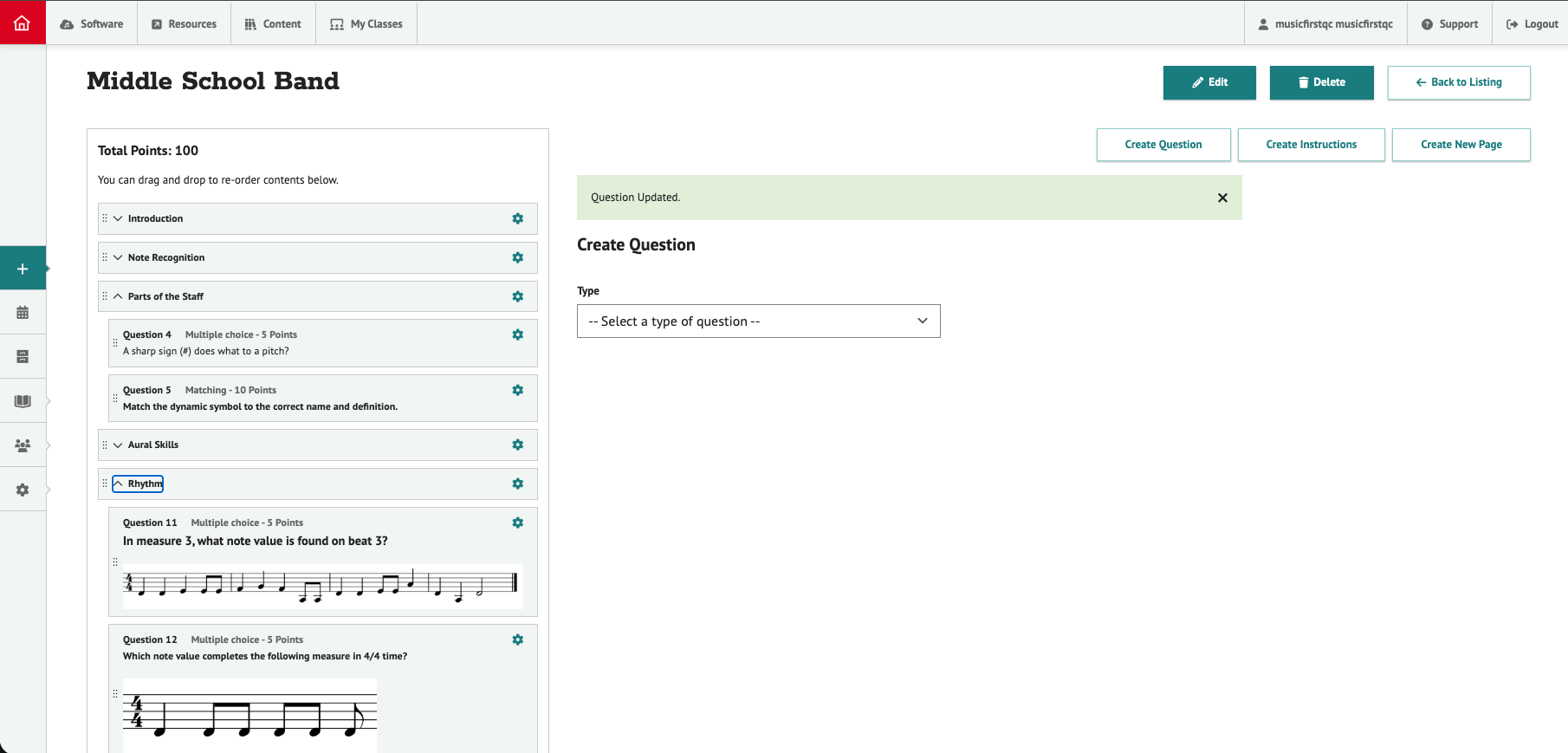
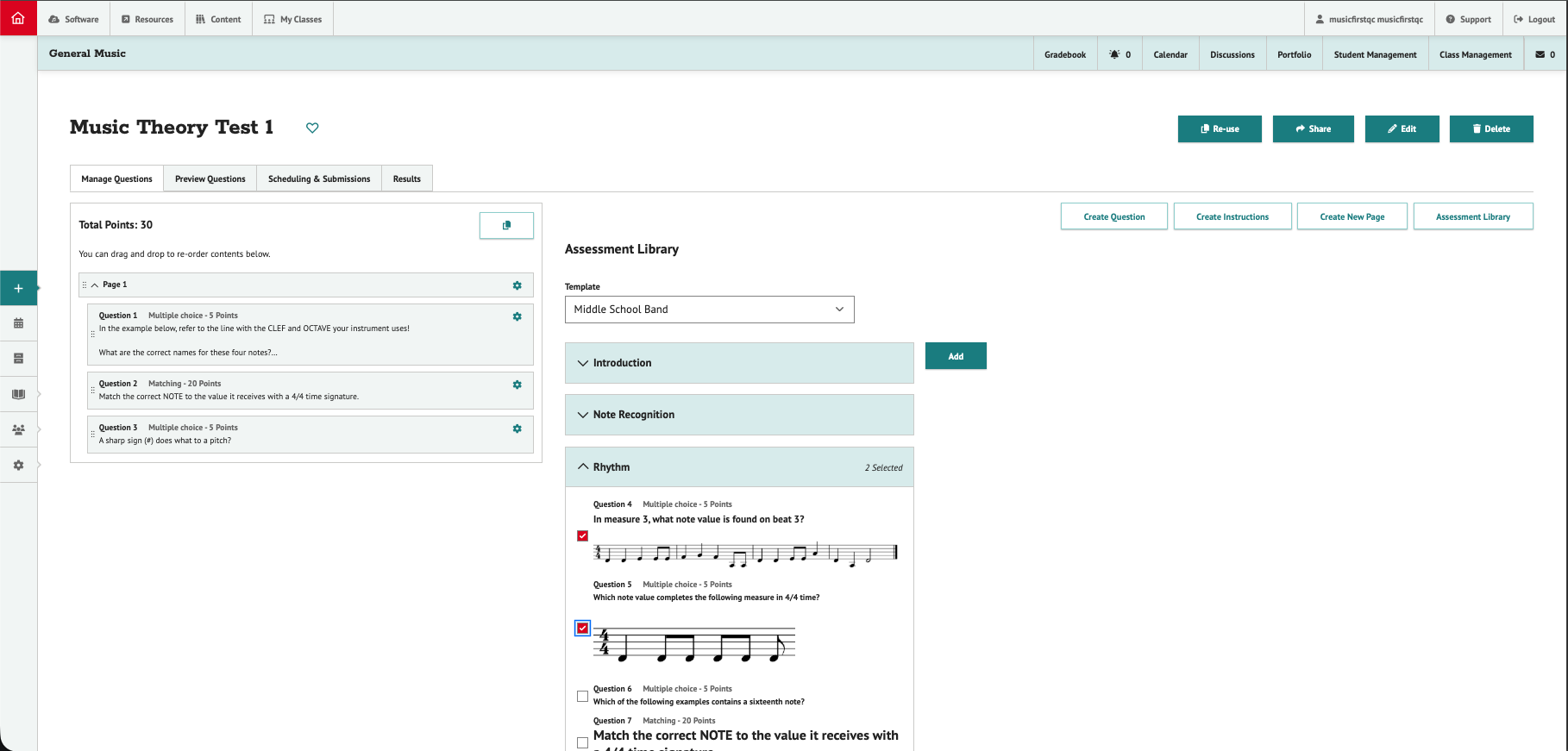
The image above shows how a user can create a new assessment using the Assessment Template feature - in this case building a test for middle school band students. Once all of the questions have been written and saved, these questions are stored in the Assessment Library for use in other tests you create. In the example below, I created a new assessment after saving my Middle School Band template. Once there, I clicked on the Assessment Library button on the right and chose the Middle School Band template from the dropdown menu. Every question then appears below. You can then click on all of the questions that you’d like to add to the new assessment - in this case a Music Theory Test - and then click on Add and they’ll appear in the Manage Questions area on the left. From there, you can edit them and reorder them to suit the needs of the new test. This new feature is a HUGE time saver and we hope that you’ll enjoy it. Big thanks to Brad Smith and the entire dev team for launching this feature!
If you are an existing MusicFirst Classroom user and would like to try out the Assessment Library yourself, just click on the Grading tab from the left menu, and then select Assessment Library. If you’re not an existing MusicFirst customer, just sign up for a FREE 30-day trial. We hope you enjoy this new streamlined way of creating custom assessment for your music students!